

PDF Customiser
Customize order confirmations, invoices, shipments, credit memos and pre-shipment packing lists from one Magento admin workspace. This guide explains setup and daily use for store administrators. Screenshots show the actual interface; customer branding and identifying details have been removed or replaced with Example Store demonstration text.
Contents
- Installation and upgrades
- Quick start
- Configuration and scope
- Layouts and branding
- Logo and address sources
- Document settings
- Independent product columns
- Barcodes
- Preview and downloads
- Background exports and archives
- Customers, guests and email
- Troubleshooting
- License and deployment checks
Installation and upgrades
Install into a compatible Magento project with CodingAnts Core and the dependencies declared in composer.json. Use an authorized Composer repository when available:
For a source checkout, place the module contents under app/code/CodingAnts/PdfCustomiser and satisfy its Composer requirements in the Magento root; copying source alone does not install TCPDF, FPDI or Core. Follow the site's normal production deployment procedure for DI compilation and static-content deployment. Run commands as the site's deployment user. Back up configuration and private invoice archives before an upgrade; do not delete them as part of cache cleanup.
The declared PHP range is 8.3/8.4/8.5, but local acceptance was on Magento 2.4.9 / PHP 8.4.17. Other declared combinations require their own validation. No separate Hyva frontend package is required for native customer printing.
Grant administrators the module configuration, workspace and background-export permissions they need, plus the corresponding native sales document permissions. Gallery selection also requires the applicable Media Gallery permission. Configure Magento cron before using background jobs, and ask your system administrator to provision private storage when Web and Cron run as different OS users. Export storage must not be publicly accessible.
Quick start: your first PDF
- Open Stores > Configuration > CodingAnts > PDF Customiser at Default Config and configure the license.
- Select the required Store View, enable the module, and save. Use the order's Store View when checking results.
- Set common Template to Business, choose logo/address sources, and save.
- Open Coding Ants > PDF Customiser > PDF Workspace > Preview. Select the same store and Invoice, then Refresh Preview. Download the sample to inspect every page.
- In Download Documents, select Invoice and enter an existing invoice number (not its order number). Choose Merged PDF and download.
- Enable Customer Downloads if customers should receive custom PDFs through native Print. Enable email attachment selections only after checking captured test messages.
Preview is synthetic and does not create sales records. Creating an invoice, shipment, refund or payment remains a separate Magento operation.
Initial configuration
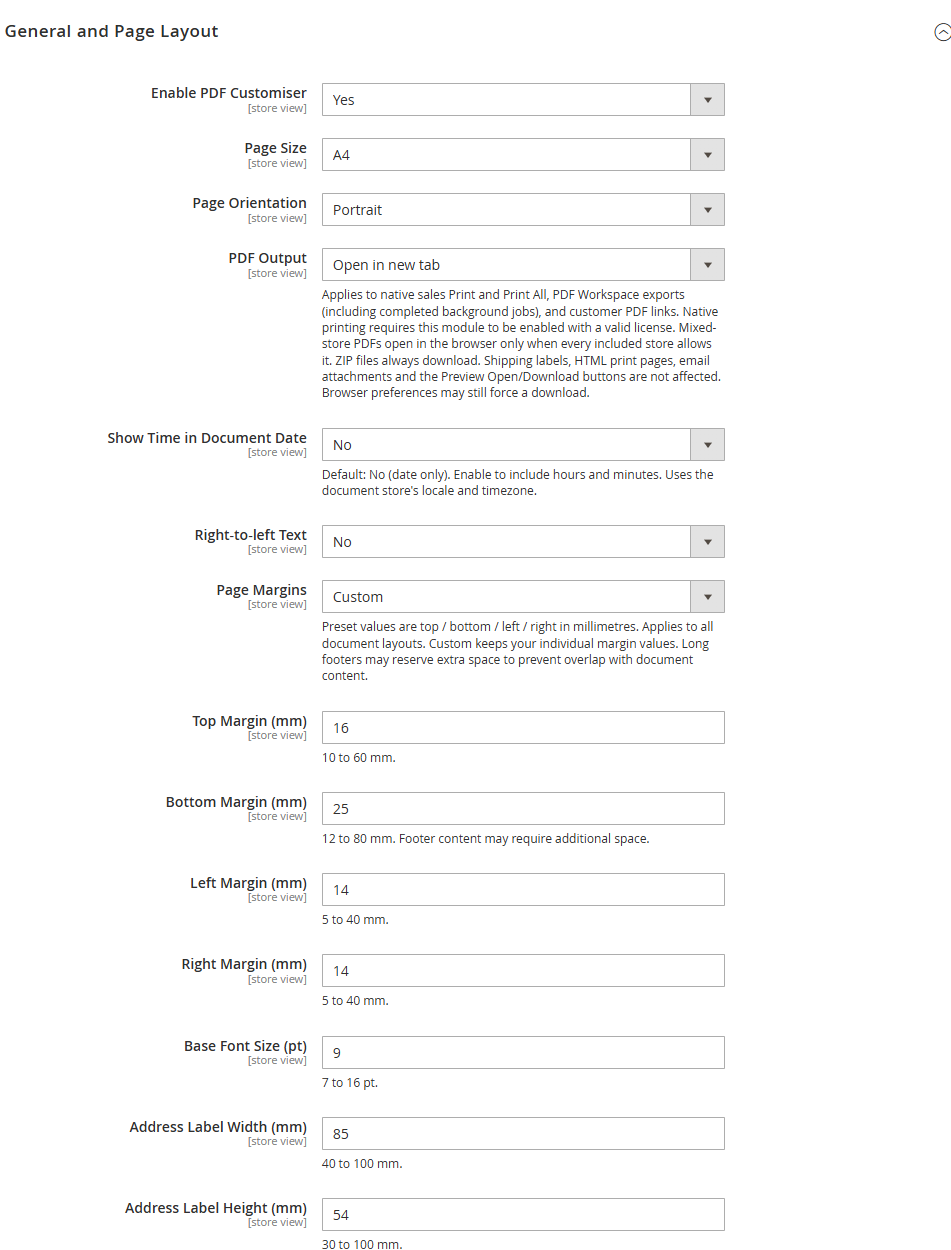
Open Stores → Configuration → CodingAnts → PDF Customiser and select the Store View to configure. Default, Website and Store View values follow Magento's normal scope inheritance. A document's Use Common Settings option instead inherits the module's common document settings; these are separate options.
Enter licence details under License, then enable Enable PDF Customiser for the required stores. Synthetic samples can be previewed before enabling the module; real order output, account downloads and attachments always check the licence. Enabling the module does not create invoices, shipments, credit memos or payments.
Layout and branding
- General and Page Layout: choose A4/Letter, portrait/landscape and inline browser display/direct download. Margins and label dimensions use millimetres; font sizes use pt.
- Page Margins: Narrow uses 10/12/8/8 mm, Standard 16/25/14/14 mm and Wide 22/30/20/20 mm (top/bottom/left/right). Custom exposes the four independent fields. Existing stores default to Custom, preserving their saved values. Presets apply to all six layouts without changing their content density; Compact remains the compact layout. The renderer measures formatted footer content and reserves extra room only when needed to protect the footer and page numbers. Custom top/bottom minimums are 10/12 mm; left/right minimums are 5 mm.
- Open in new tab keeps the current page open when launching a PDF. Browser preferences decide whether this is a tab or a separate window. ZIP downloads and explicitly queued background requests keep their existing behavior. A grid selection spanning stores uses a new tab when inline PDF output is available; the server still applies the existing mixed-store download policy.
- PDF Output applies to native sales Print/Print All, workspace PDF exports, completed PDF jobs and customer PDF links. Native printing uses this setting only for enabled, licensed stores. A merged PDF opens inline only if every included store permits it; otherwise it downloads. ZIP files always download. Shipping labels, HTML print pages, email attachments and the preview's explicit display/download actions are unchanged. Browser preferences can still force downloads. Completed jobs use the current output preference when opened.
- Company, Fonts and Artwork: configure the logo, company details, tax number, header and up to four footer blocks. Upload regular/bold TTF fonts and background stationery, and configure watermark text. Images may be PNG/JPEG/GIF, up to 5 MB and 16 million pixels; fonts must be valid TTF files, up to 24 MB.
- Choose from six distinct layouts: Business, Letter, Profile, Compact, Warehouse and Sidebar, described below. All use white paper, dark text and thin separators, without title or table-header background fills. There is no colour picker or product thumbnail column. Uploaded background artwork, logos and watermarks remain optional and may increase ink usage.
- Long footers must leave space for page numbers and body content. The system rejects content that cannot safely fit in the footer or label area. After making changes, inspect a sample and representative long documents.
Choosing a layout
Set the common Template, then choose a different Template in any document section or keep Use Common Settings. For example, use Business for invoices, Compact for order confirmations and Warehouse for shipments. The layout does not change which sales entity supplies the document's amounts or quantities. Address visibility, custom product columns and other document settings still apply.
Warehouse defaults to OK, SKU, Product and Qty columns when monetary amounts are hidden and no custom columns are configured. Explicit custom columns remain authoritative. Any layout can be selected for any supported document type; Warehouse does not force invoice prices to be hidden.
All layouts keep document numbers and dates in the heading, above the customer address area. Number labels follow the document type: Invoice Number, Credit Memo Number, Shipment Number or Order Number. Pre-shipment packing slips use Order Number once; invoices, credit memos and shipments can also display the related Order Number.
Saved identifiers remain compatible: classic selects Business, minimal selects Letter and brand selects Profile. Their visible names and information arrangements have changed. Additional identifiers are compact, warehouse and sidebar. Previously archived invoices remain unchanged; newly generated PDFs use the selected layout.
Logo and company address sources
Under Company, Fonts and Artwork, choose Company Logo Source and Company Address Source independently:
- Use Magento Settings (new-install default) reads the order store's Sales > Sales > Invoice and Packing Slip Design PDF logo or address. HTML print-view settings remain unchanged.
- Use Custom Settings reveals the module's own image or address field. An empty custom value stays empty; it does not fall back to Magento.
- Hide omits that item without deleting the saved custom value.
Sources and values follow normal Default/Website/Store View inheritance. On upgrade, existing nonempty custom values keep the Custom source and explicit empty overrides become Hide; previously selected sources are never overwritten. Run bin/magento setup:upgrade and clean Configuration cache after updating. Existing archived invoices remain unchanged.
For a custom logo or page background, use the file upload field or Select from Media Gallery. The gallery requires Media Gallery permissions (and Insert Assets permission when the enhanced gallery is enabled). Select a PNG, JPEG or GIF up to 5 MB and 16 megapixels. The gallery image is copied into the module's scoped artwork directory when saved; changing or deleting the original later does not change the saved PDF artwork. To use a revised image, select it and save again. A new file upload takes priority if both are submitted.
Clear selection cancels an unsaved gallery selection and retains the currently saved image. Delete Image clears the custom image setting without deleting the Gallery original. Use the source Hide to stop displaying the logo while keeping its configuration. These controls follow the field's scope inheritance checkbox.
Document types
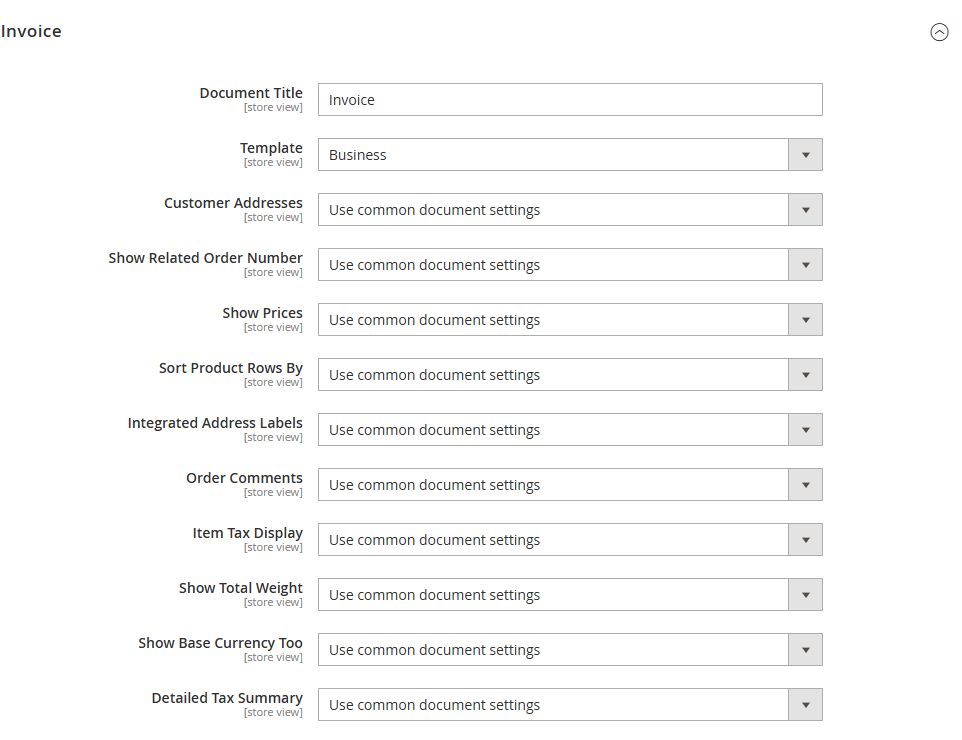
Order confirmations show order content; invoices show the current invoiced items; shipments show the current shipped items; credit memos show the current refunded items. Amounts come from the saved sales document data. Historical documents are not recalculated using current product prices or exchange rates.
Pre-shipment packing lists use the order number, include only physical quantities that remain shippable, and indicate that dispatch has not yet been confirmed. Orders without remaining shippable items do not offer this entry point. Shipments and pre-shipment packing lists hide monetary amounts by default.
Use Common Document Message, Use Common Product Columns and Use Common Customer Group Messages are enabled by default for each document type. Turn off the corresponding switch to use that document's own values, including intentionally blank document messages or customer group text. If the admin reports invalidated caches after saving, clean the Configuration cache.
Related order numbers are not repeated on order confirmations or pre-shipment lists because they are already the primary number. Detailed Tax does not add financial totals to shipment/packing documents. Custom bold fonts are used only when a custom regular font is configured.
Each document type can configure its title, related order number, billing/shipping addresses, merging of identical addresses, prices including tax/excluding tax/both, original and base currencies, detailed tax amounts, total weight, labels, public comments and additional messages. Internal order history comments are not output as customer comments.
Additional messages support these variables: {{order.number}}, {{document.number}}, {{customer.name}}, {{customer.email}}, {{store.name}}, {{document.date}}. Supported markup is limited to paragraphs, line breaks, bold, italic and lists; arbitrary scripts or remote resources are not accepted. Customer group messages are matched to the customer group associated with the document.
Example: different invoice and shipment columns
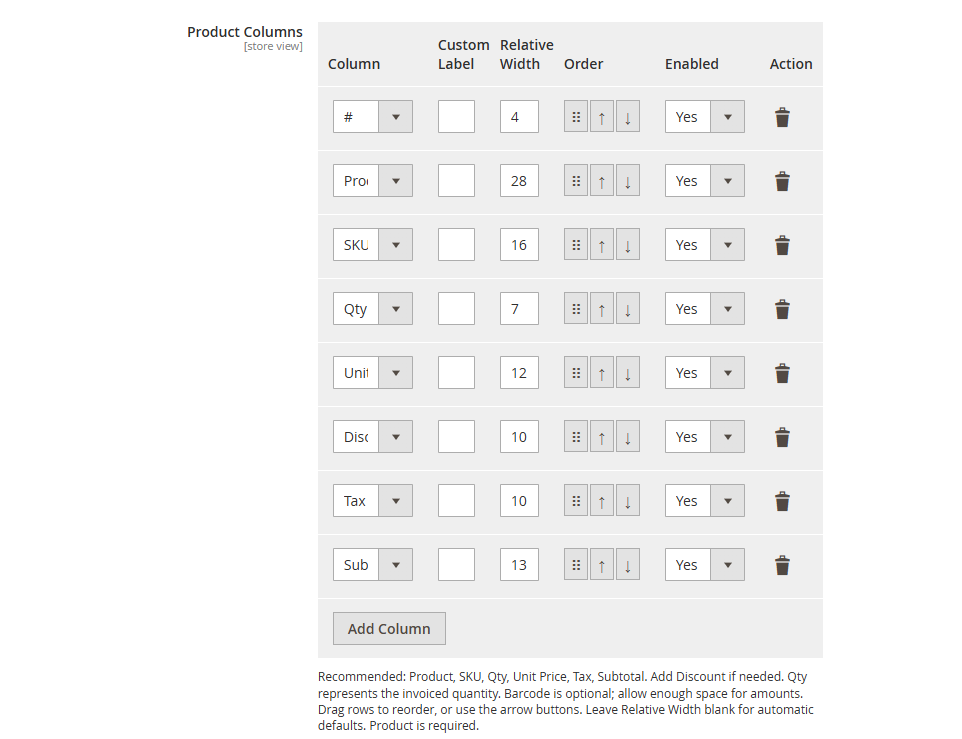
- In Invoice, turn off Use Common Product Columns.
- Keep Product enabled; choose SKU, Qty, Unit Price, Tax and Subtotal as needed. Set labels and relative widths, then use Move Up/Down to set their order.
- In Shipment, turn off Use Common Product Columns independently and choose Product, SKU, Qty and Checkbox. Keep Show Prices disabled for a warehouse document.
- Save Config, then preview both types in the correct store. Check a long real document as well as the synthetic preview.
Disabling a document's common-message/group-message inheritance permits intentionally blank values. Magento's Use Default/Use Website checkbox is a different mechanism: it inherits from the parent configuration scope, not from Common Document Settings.
Product columns and barcodes
Column settings support visibility, order, labels and relative width. The Product column is required, duplicate columns are not allowed, and there is a maximum of 16 columns. Available columns include SKU, quantity, unit price, discount, tax, subtotal, weight, barcode, QR code, checkboxes and attribute:attribute_code. List the attribute codes to record under the common Attribute Codes setting.
New orders record snapshots of the selected product attributes. Legacy orders without snapshots can fall back to current catalog attributes, with their source explicitly marked in the document; amounts, quantities and product options still come from the historical document. Sorting by SKU/name keeps parent and child rows of composite products together.
Barcodes and QR codes encode the SKU; barcodes for document and tracking numbers can also be enabled separately. 1D barcodes use a minimum module width of 0.33 mm and white quiet zones of 11 modules on each side. QR codes use 0.5 mm modules and white quiet zones of 4 modules on every edge. The system checks dimensions against the actual column width. When a barcode exceeds its column width, the document retains its identifier and prints the complete barcode in a labelled full-width area. Sidebar uses a subsequent full-width page so its divider cannot cross the symbols. If a barcode exceeds even the full printable page width, Barcode does not fit at a scannable size appears; use landscape paper or a QR code. The system preserves the text rather than producing a compressed, unscannable barcode.
Code39 Extended preserves mixed-case identifiers. Plain Code39 and Code93 cannot safely encode lowercase here and show a warning instead; use Code128, Code39 Extended or QR. Document, tracking and product 1D heights can be set separately from 8 to 25 mm; these settings do not resize QR codes. Formats have different input requirements; for example, EAN/UPC require the corresponding numeric format. Before warehouse use, validate representative long SKUs with the actual paper, print scaling and scanning equipment. Digital PNG/PDF decoding tests do not replace physical print acceptance testing.
Preview and download
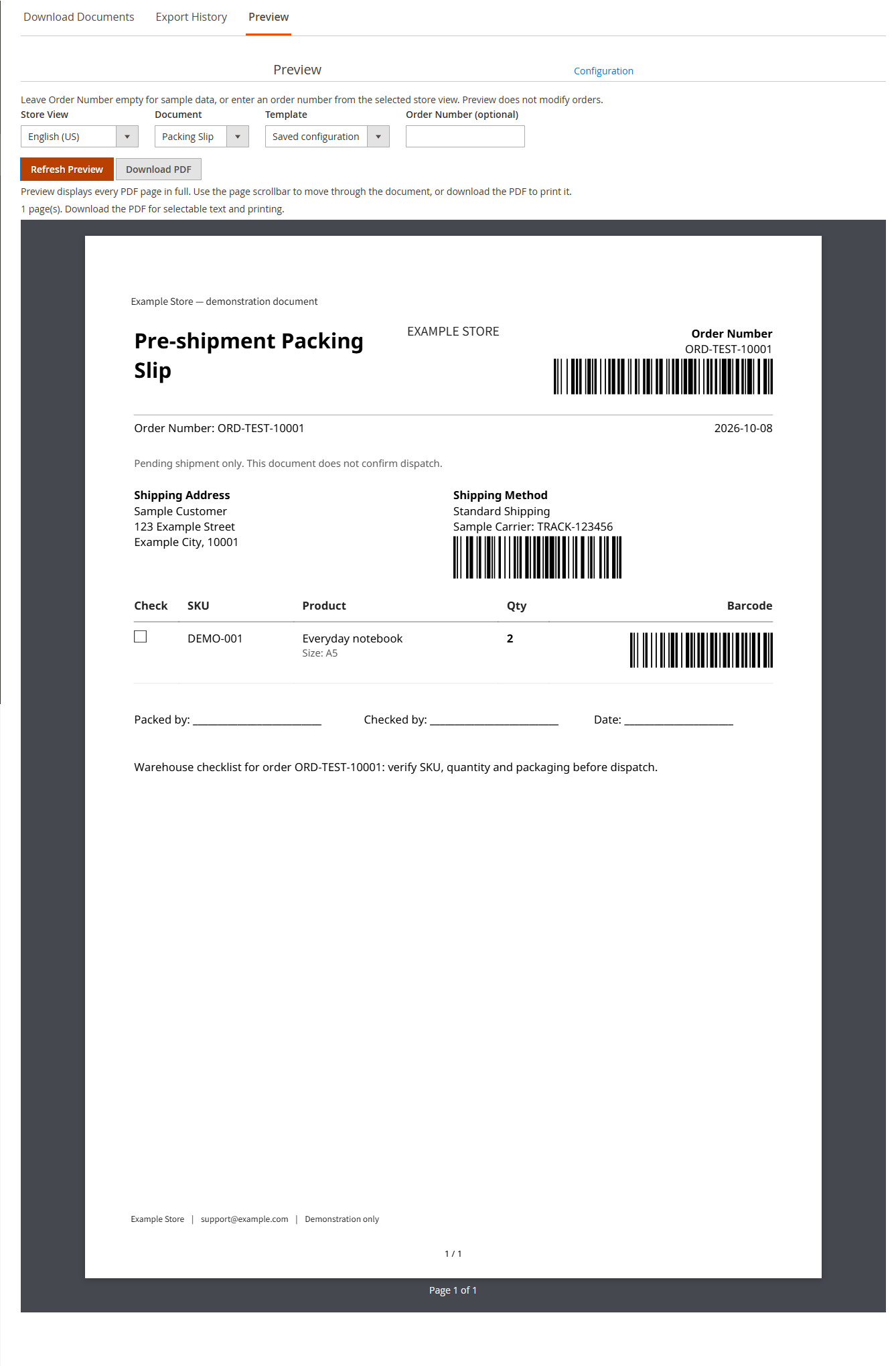
Preview renders the saved layout with sample data. This example shows a packing slip with product and tracking barcodes.
Open Coding Ants → PDF Customiser → PDF Workspace (also available under Sales). The workspace has three tabs: Download Documents opens by default, Export History lists your background jobs, and Preview checks sample output. Switching tabs preserves form input; the selected tab also survives a page refresh. Keyboard users can switch with Left/Right, Home and End. Export History requires background export permission.
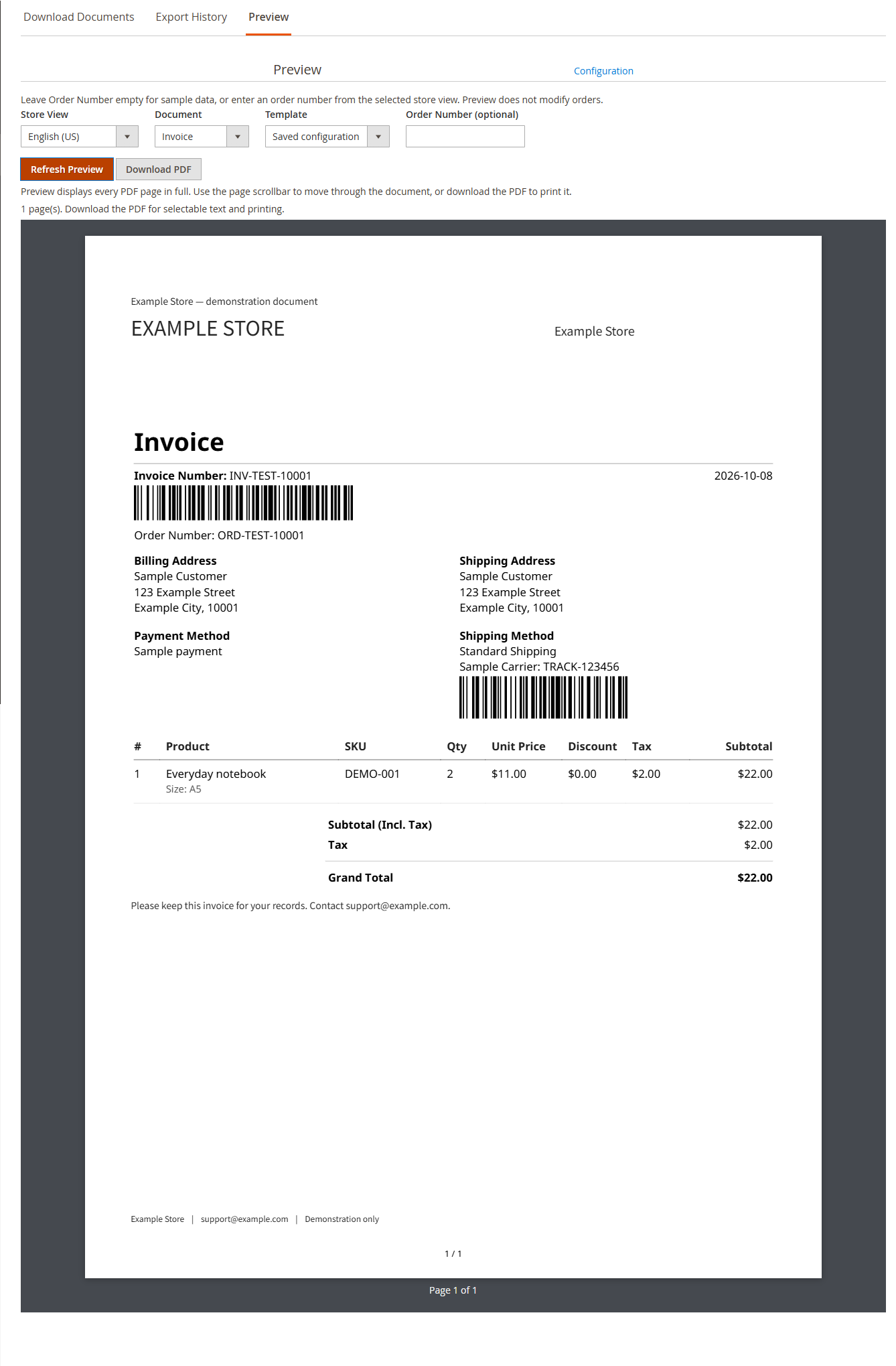
In Preview, choose a Store View, document type and template, then click Refresh Preview. The preview uses synthetic data and saved store configuration. Template selection applies only to that sample and does not save configuration. Every page of the actual PDF is displayed in full within the workspace, using the browser page scrollbar instead of an independently scrolling PDF frame. The display fits the available width; use Download Sample PDF for printing or selectable text. The Configuration link opens module settings when permitted. If preview rendering fails, refresh the page or download the sample PDF. The renderer is bundled locally (PDF.js, Apache-2.0); it does not send the document to a third-party service.
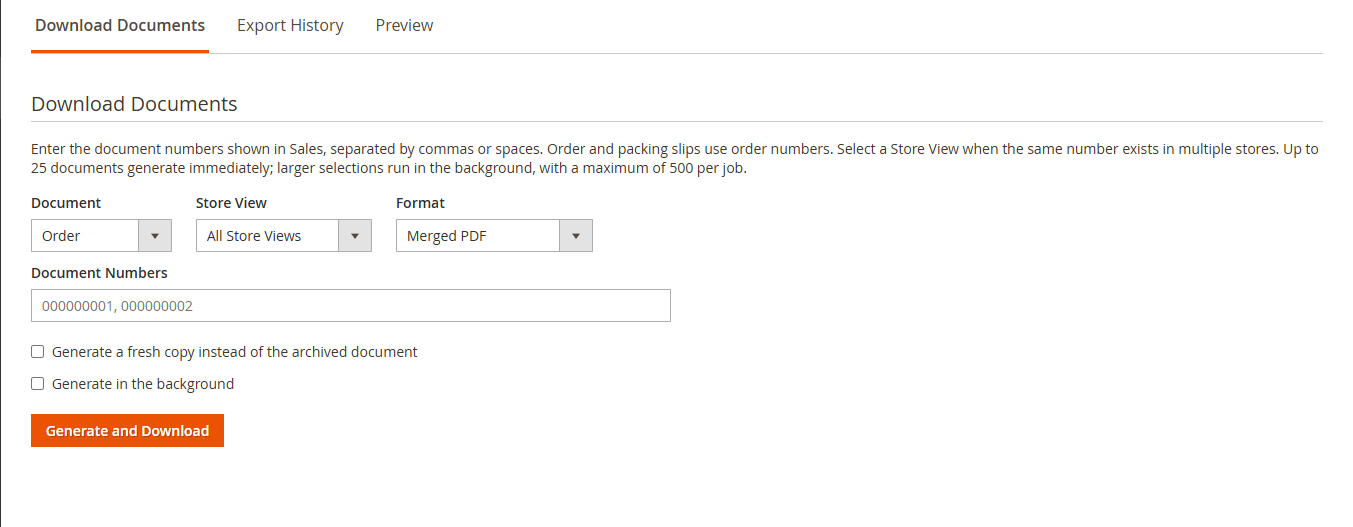
Under Download Documents, select a document type and Store View, then enter the document numbers shown in the sales admin, such as 000000001, 000000002. Order confirmations and pre-shipment packing lists use order numbers; other types use their own document numbers. If multiple stores have the same number, select a specific store. If any number is missing or matches multiple records, the entire export stops with an error.
Choose Merged PDF for a combined file or ZIP of individual PDFs for separate document files. You can also filter/select documents in sales grids and use the added PDF/ZIP actions. Order grids can export order confirmations, packing lists and related invoices/shipments/credit memos; an error appears if the requested related documents do not exist.
Native invoice, shipment and credit memo Print actions, plus the order grid's Print All, use the same generation service. Order details also provide Order PDF and Pre-shipment Packing PDF. Each document type still requires its corresponding sales permissions.
Background exports and archiving
By default, batches of up to 25 documents are generated immediately; larger batches automatically run in the background. The default maximum is 500 documents per job. You can also select Generate in the background explicitly. Set these limits under General and Page Layout at Default Config. Maximum immediate batch size, maximum job size and retention are global; they are not Website/Store View overrides. Large batches require background export permission and working server cron.
After a background export is queued, the workspace opens Export History and highlights that job. Refresh to check progress, then download when ready. Instant downloads remain on Download Documents and are not listed in background history. Failed jobs retry automatically; after the third failure, use Retry to queue the job again and return to its history row. Exports are available only to their creator, and permissions are rechecked during execution and download. They expire after 24 hours by default, with automatic file cleanup. Generated content is limited to 200 MB per job; split the selection if this limit is exceeded.
When Keep First Generated Invoice PDF is enabled, the first generated invoice is archived, and ordinary downloads/attachments reuse it. Selecting Generate a fresh copy in the workspace produces a copy using the current settings without overwriting the first archive. Temporary export retention does not delete invoice archives.
Accounts, guests and email
Logged-in customers open My Account > My Orders > View Order and use the existing Print Order link. The Invoices, Shipments and Refunds tabs provide their native Print and Print All links when those records exist. The module replaces authorized native print responses with PDFs on standard themes and Hyva; it does not add a duplicate PDF download block. Customers can access only their own documents. No separate PdfCustomiser Hyva module is required for these native endpoints.
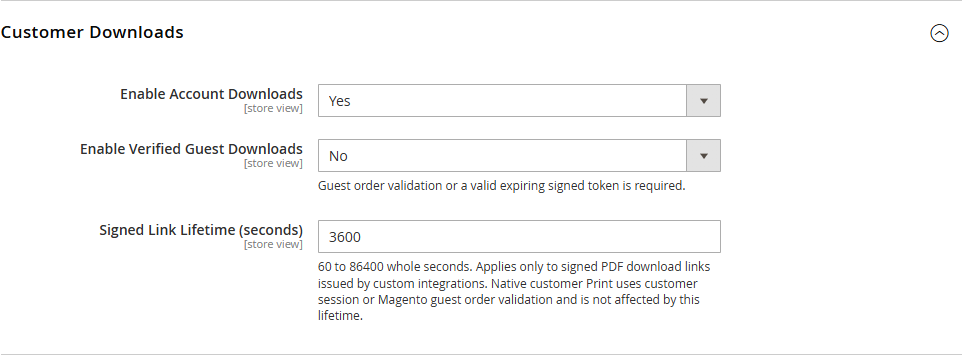
Guest PDF access is disabled by default. When both Customer Downloads and guest access are enabled, guests must first pass Magento's existing order validation before using the native print routes. Signed Download Lifetime is only for custom integrations that explicitly issue signed links; native Print does not use it. Such tokens are bound to the document, order, Store View and expiry, with a default lifetime of 3600 seconds. Changing the setting does not change already-issued token expiry. An order number or internal ID alone never grants access.
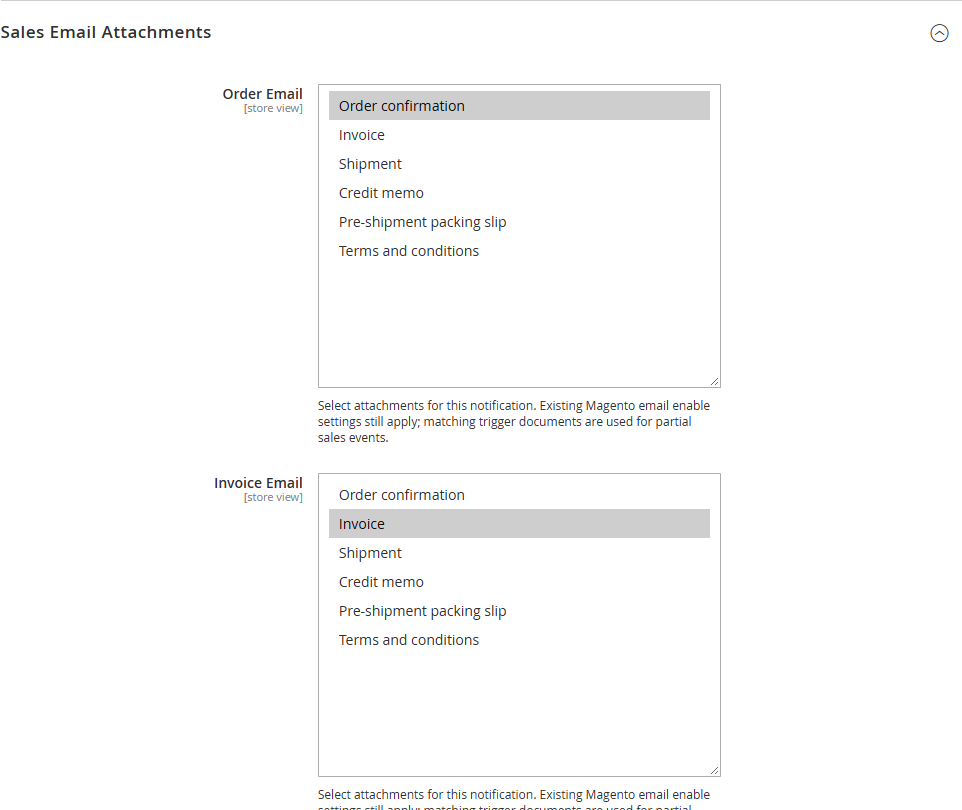
Email Attachments can be configured separately for order/invoice/shipment/credit memo notifications and their four corresponding comment notifications. Choices include orders, invoices, shipments, credit memos, packing lists and the current store's active terms. All selections are empty by default; these settings do not enable sales notifications that Magento has disabled.
Attachments use the original order's store settings. The matching document type uses the entity that triggered the notification; other types look up only documents related to that order. The default attachment limit is 10 MB, including the original email body, existing attachments and MIME encoding overhead. The default failure policy preserves the original email and logs the failure; strict mode blocks that send. Before enabling attachments, use captured test emails to verify filenames, body content and attachments, without sending trial emails to real customers.
Troubleshooting
License availability and deployment acceptance
A missing or invalid runtime license prevents protected custom PDF operations. Customer native Print returns Magento's original HTML print result when the guard denies access; native admin printing retains its core fallback. Sales email construction keeps the original transport without adding module PDFs when licensing is unavailable. This does not delete settings or files already downloaded by customers.
License validation may use a valid cached signed token, so revocation is not necessarily reflected immediately. A failed validation request can make the guard deny access when no usable cached token is available. Do not confuse the read-only License Status display with the runtime access decision.
Customer Downloads is independent of this license prerequisite. Its signed-link lifetime applies only to custom integrations issuing signed links; native Print does not use that lifetime.
Before production use, verify the production-domain license, receive a test PDF attachment through the configured mail provider, and complete a background export under the deployed Web/Cron users. Keep exports in private storage outside publicly accessible media directories.
Support
If a problem persists, contact support@codingants.com.au with the Magento and PHP versions, document type, selected Store View, relevant configuration and the error or diagnostic code. Do not include license keys or customer documents in a public issue. Use a synthetic preview when demonstrating a layout problem.