

Banner Slider
Introduction
Banner Slider is a Magento 2 extension for managing banner content in Admin and placing it on CMS pages or static blocks through a widget. It supports two display modes:
- Carousel: Owl Carousel based slider mode (Luma) / Alpine.js carousel (Hyvä)
- Stack: Ordered stacked layout mode
Packages
Requirements
- PHP
~8.2.0 || ~8.3.0 || ~8.4.0 - Magento
2.4.8or compatible codingants/module-core^1.0- Hyvä module (for Hyvä package only):
hyva-themes/magento2-theme-module^1.4
Installation
Luma / Blank Theme
Hyvä Theme
Install both packages together. Because this module introduces new Tailwind utility classes, you must generate the Hyvä configuration and recompile your theme's styles after installation:
Recompile your active theme's Tailwind CSS:
Upgrade
Configuration
Admin path:
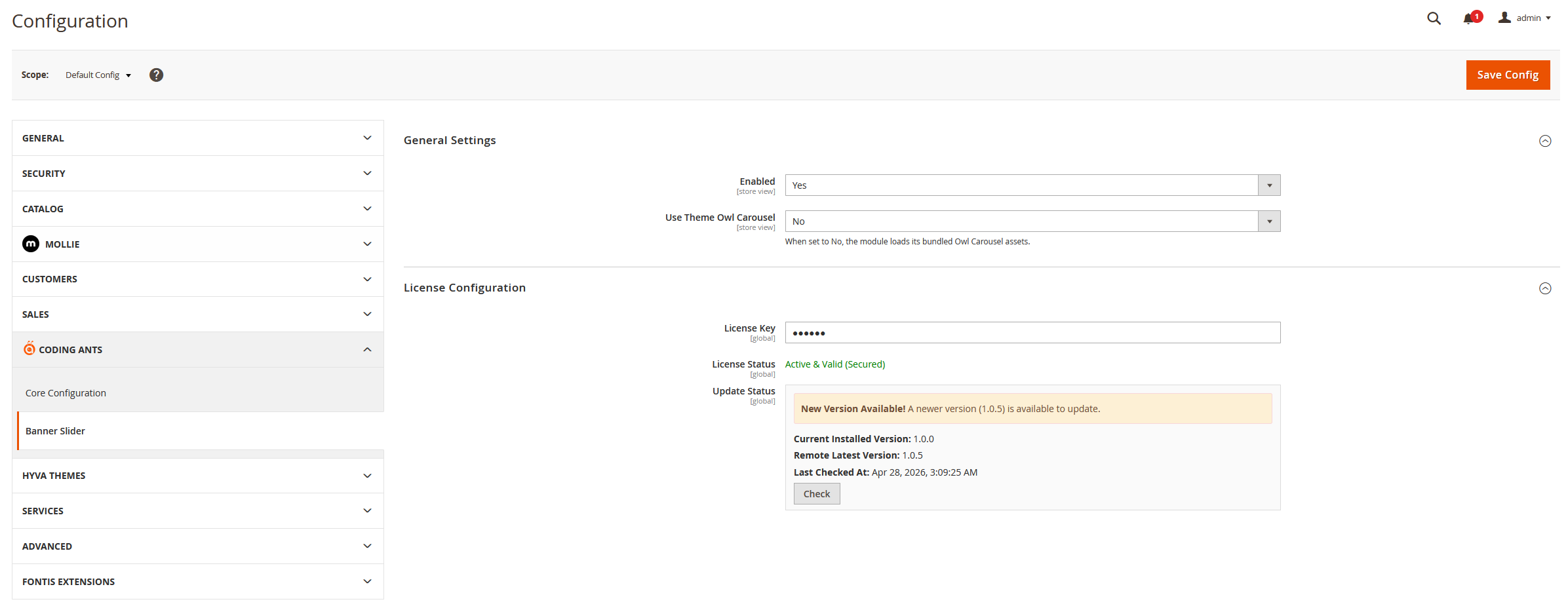
Stores > Configuration > Coding Ants > Banner Slider
General Settings
License Configuration
Admin Usage
Admin menu entries (under Coding Ants > Banner Slider):
- Sliders — Manage slider records
- Banners — Manage banner records
- Import / Export — Bulk data migration
- Configuration — Shortcut to system configuration
Configuration page screenshot (Stores > Configuration > Coding Ants > Banner Slider)
1. Create Banners First
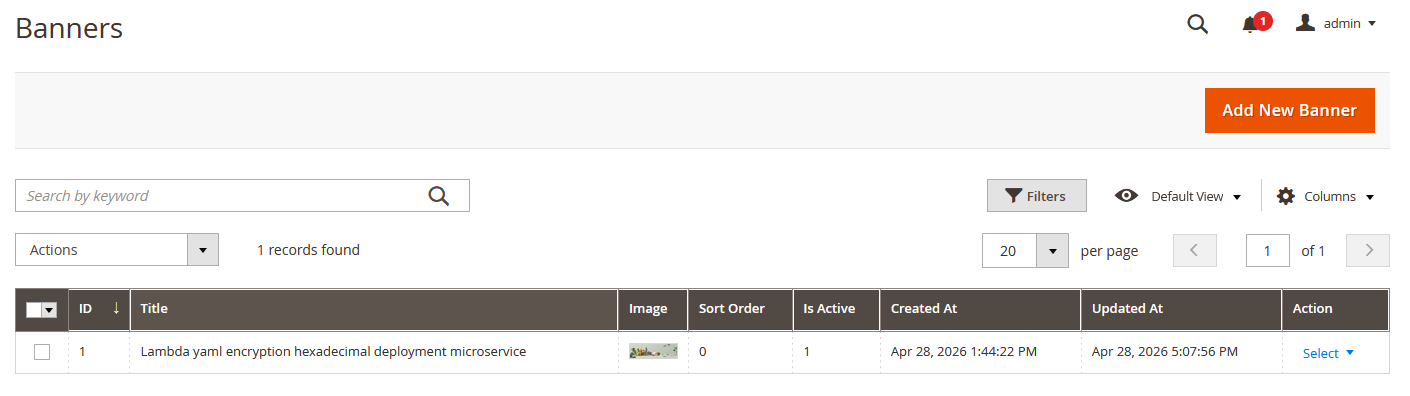
Navigate to Coding Ants > Banner Slider > Banners and create banner records.
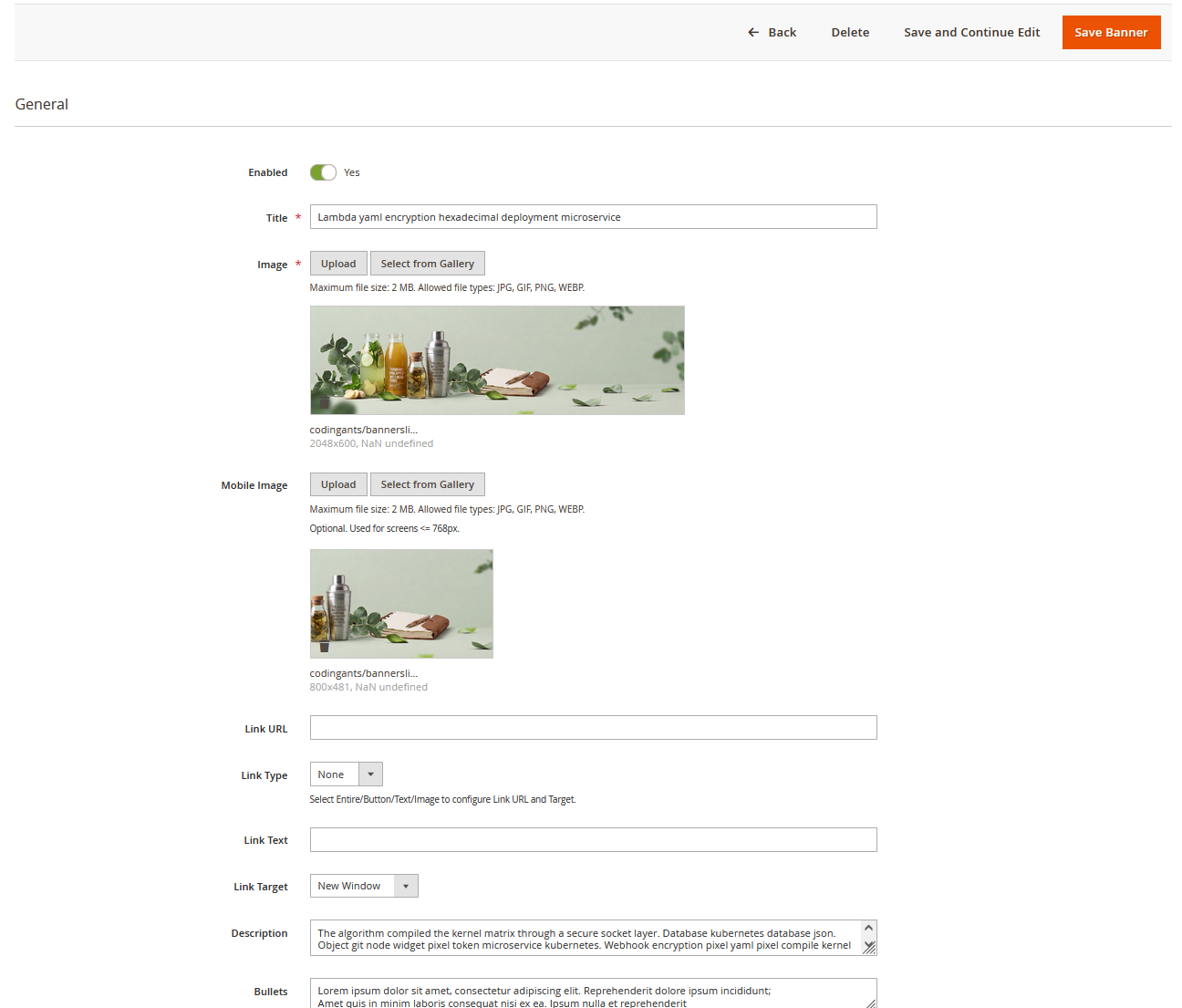
Banner edit actions:
- Save Banner — Save the current banner and return to the grid
- Save and Continue Edit — Save the current banner and stay on the same record
- Save & Duplicate — Save the current banner, immediately create a duplicated banner, and open the new banner in edit mode. This is useful for quickly creating similar banners without repeating the same configuration. The duplicated banner keeps the current images, content, link settings, and associated sliders.
Banner Fields
2. Create Sliders
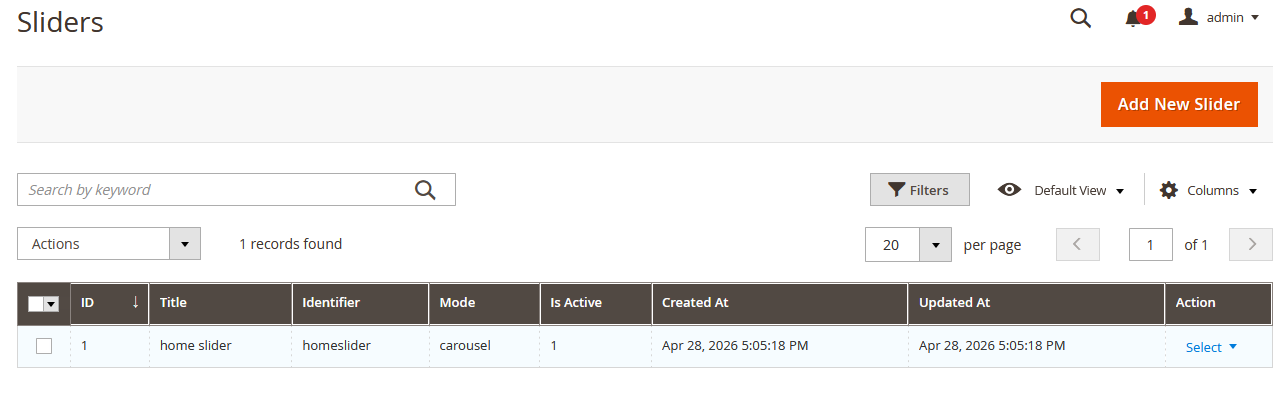
Navigate to Coding Ants > Banner Slider > Sliders and create slider records.
Slider General Fields
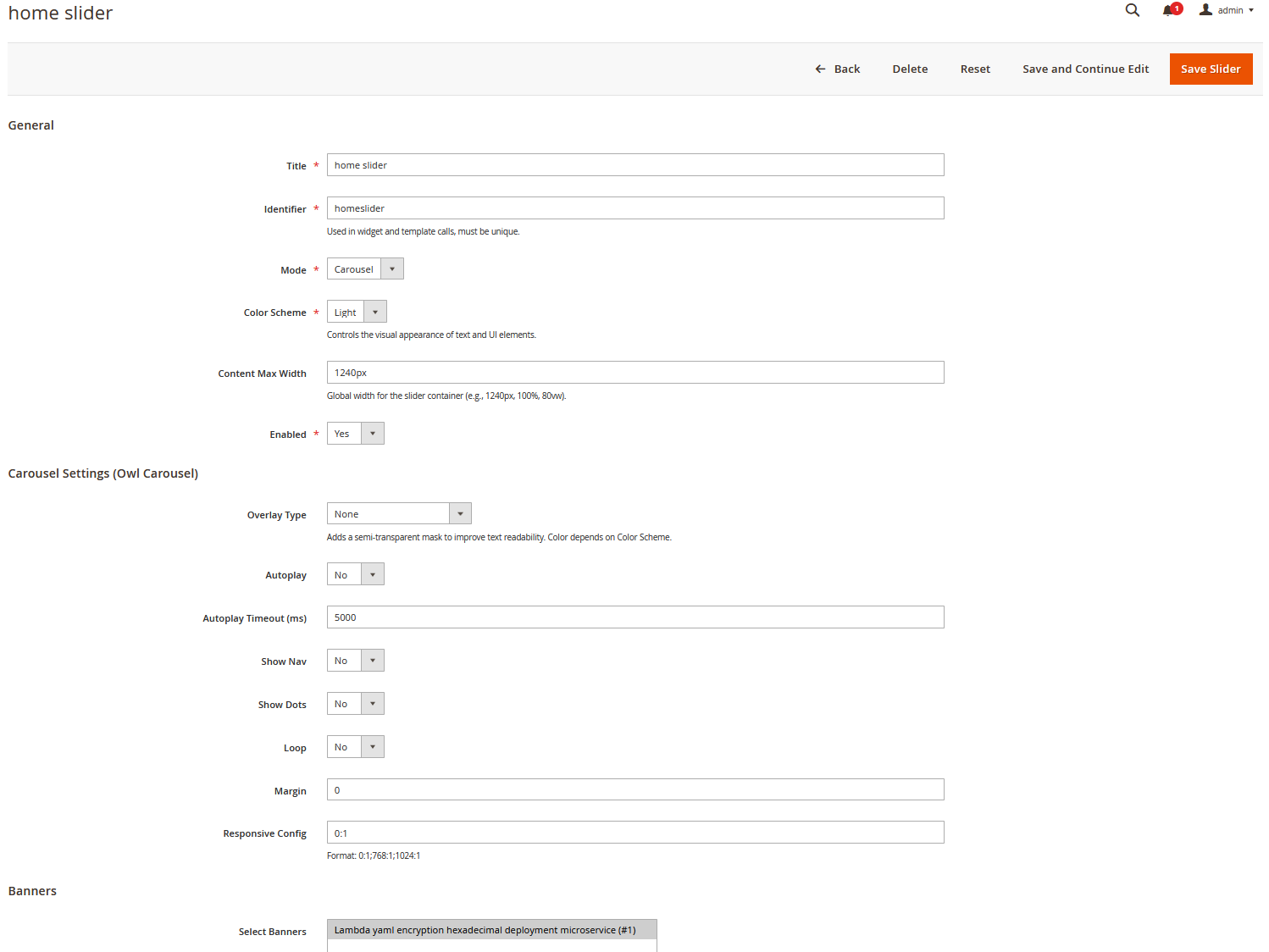
Carousel Settings
These fields apply when Mode = Carousel:
Banners Selection
Frontend Placement
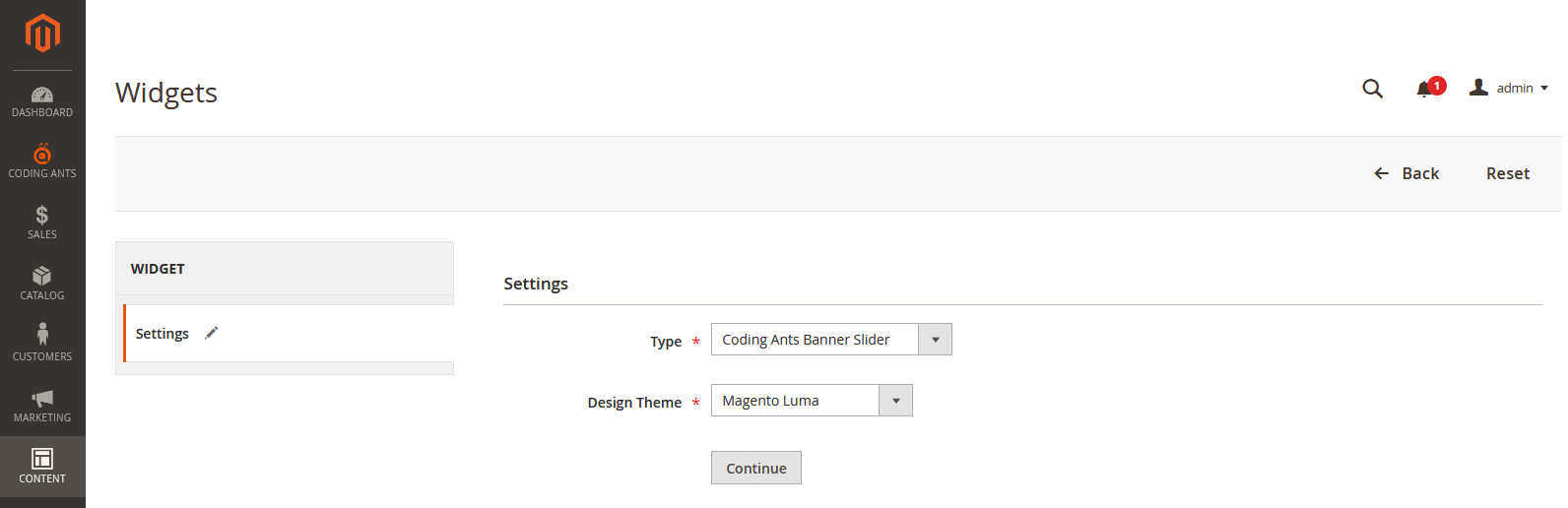
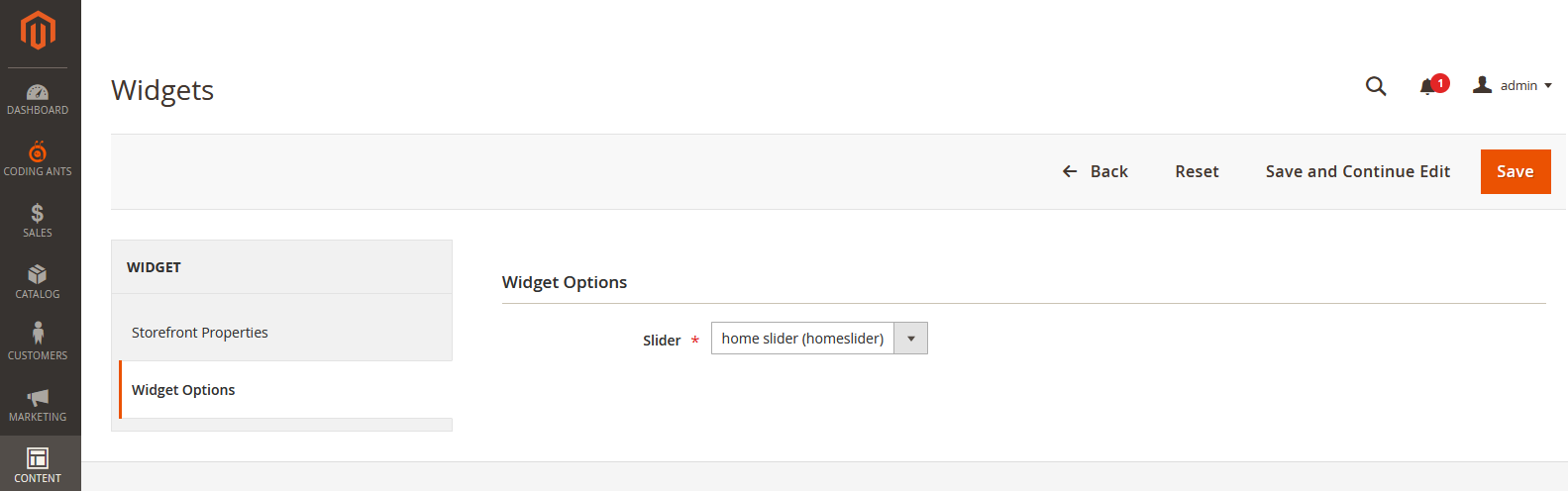
Option 1: Widget (Recommended)
Insert a widget in a CMS page or static block:
- Widget Type:
Coding Ants Banner Slider - Slider: Select an existing slider by identifier

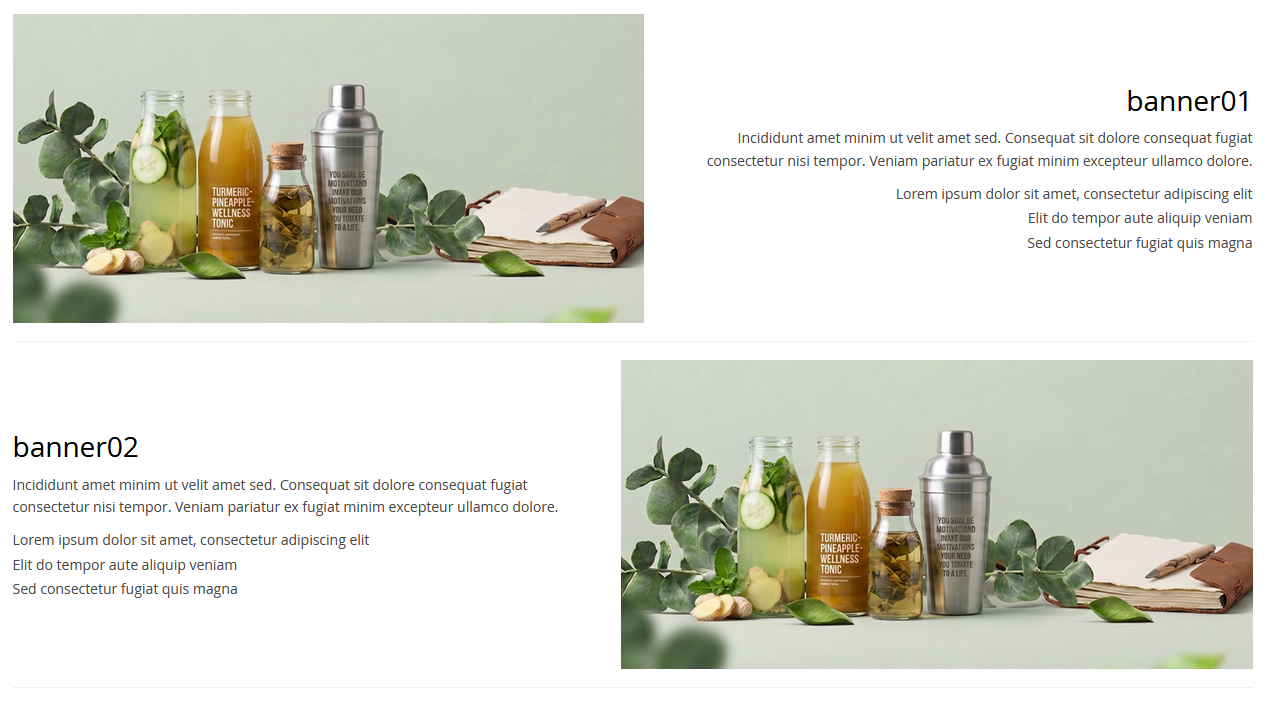
Rendering rules:
- Do not render when global
Enabled = No - Do not render when the selected slider is missing or disabled
- Render Carousel or Stack layout based on slider
Mode
Option 2: Layout XML
To render a slider directly from layout XML:
Hyvä Theme Compatibility
The CodingAnts_BannerSliderHyva module provides full Hyvä storefront support:
- Template swap: The base Luma template is automatically replaced with a Hyvä-optimized template on
hyva_defaultlayout handles. - Alpine.js carousel: Replaces Owl Carousel with a pure Alpine.js implementation. CSP-compatible via
$hyvaCsp->registerInlineScript(). - CSS swap: Base module CSS is removed on Hyvä pages; Hyvä-specific styles (
banner-slider-hyva.css) are loaded instead. - Animation toggle support: Slider field Enable CSS Animation is shared across Luma and Hyvä. When disabled, custom content entrance animations and image zoom effects are not applied. When enabled on Hyvä, the slide track CSS transition is also enabled.
- Full feature parity: All features — carousel, stack, responsive item count, margin, autoplay, nav, dots, loop, overlay, color scheme, per-banner link modes, and mobile image — are supported.
Data Migration (Import / Export)
Navigate to Coding Ants > Banner Slider > Import / Export:
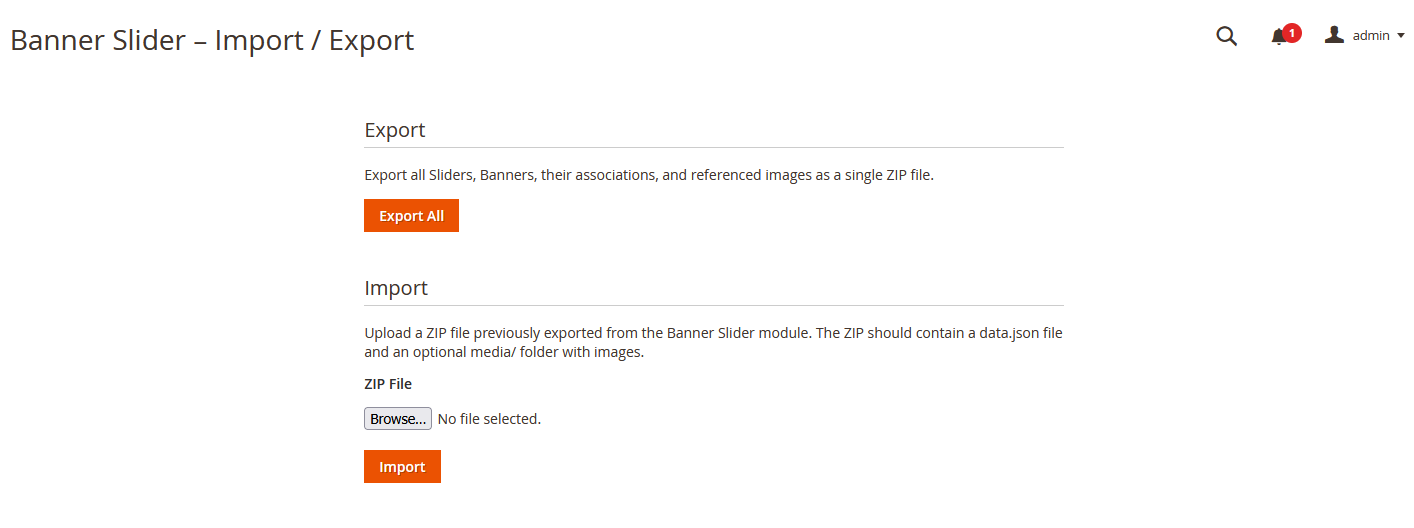
- Export All: Export sliders, banners, relations, and referenced images as a ZIP file
- Import: Upload a ZIP exported by this module (must contain
data.json; optionalmedia/folder)
Typical use cases:
- Multi-environment synchronization (development / staging / production)
- Site migration or rapid slider content replication
Best Practices
- Use semantic identifiers such as
home_heroorcategory_top - Verify both banners and sliders are enabled before go-live
- Upload a dedicated mobile image for key banners to ensure good appearance on small screens
- Use Color Scheme = Dark when banner backgrounds are light-colored, and vice versa
- Use Overlay Type = Content or Full to improve text readability on busy images
- Keep Enable CSS Animation disabled unless the project specifically wants animated slide content or image zoom effects
- Clear cache and retest if frontend output is not updated
- Maintain a consistent
Responsive Configstrategy across site breakpoints - Invalid width values are normalized to safe defaults by the module
- If no valid link type is provided but a link URL exists, the module falls back to
Entire